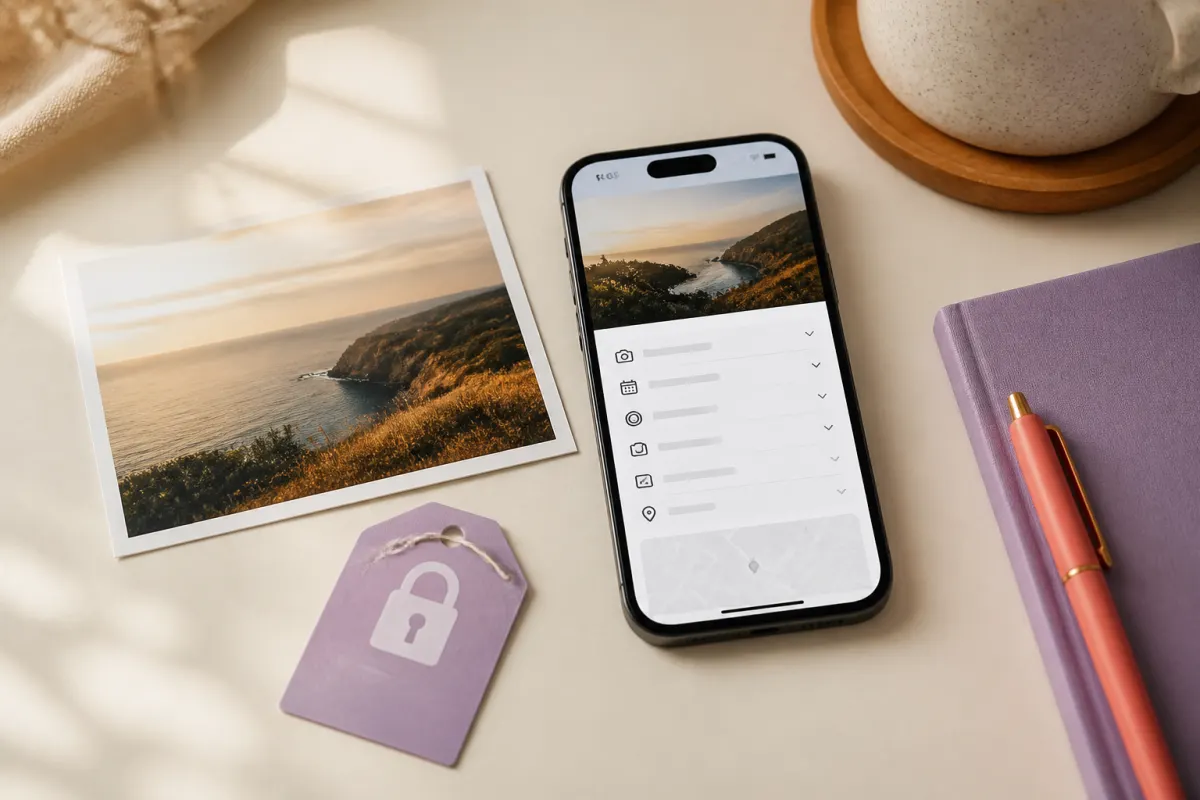
Your iPhone can tell you a great deal about a photo without changing the picture. In Photos, open an image and tap the information button to see its date, dimensions, camera details and, when available, a map of where it was taken. Those details are useful for your own library but may be unnecessary when you send the file to someone else.
Check the info panel
Look for the location, capture time and device details before you share. If the image came from an editing app, you may also see software or format information. The panel is a useful first look, but it does not list every field that another application might read from the file.
Use the share sheet carefully
When you share directly from Photos, check the options above the app list. If Location is enabled, the recipient may receive the location attached to that share. Turning it off helps for that moment, while a cleaned copy is easier to reuse in a message, listing or upload where you cannot control the next step.
Make a clean copy for wider sharing
For a fuller check, open the file in whyaiai’s image privacy analyzer. It shows the common groups it can find. Then add a copy to the cleaner and download the export you intend to send. Your original stays in Photos, and the new file is the one that leaves your phone.
One last look before you tap send
Metadata is only part of the picture. Check the image itself for addresses, badges, reflections and notifications. Cleaning the file does not alter visible pixels, so remove anything visible that you would not want a stranger to see.